
Follow the steps below for fresh installation of LPSM:
Boot your system with LogPoint v6.0.0 ISO.
Select LogPoint Search Master.
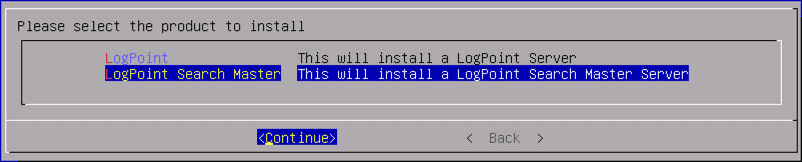
The installer detects the number of Hard Disk Drive(s) (HDD) present in the system and provides options for the LPSM installation accordingly. The available modes of the LPSM installation according to the number of HDD are:
Number of HDD(s) |
Mode of Installation |
|---|---|
1 |
Single |
2 |
Mirror/ Single |
3 or more |
RAIDZ/ Mirror/ Single |
Note
The ZFS (Zettabyte File System), used by the LogPoint Director setup, itself provides a software-defined solution for disk-based redundancy (Mirror, RAIDZ). Hence, it is not recommended to use a hardware-based RAID. Doing so limits the ZFS to perform self-healing on checksum failures.
When selecting the RAIDZ mode, the first three disks are used for OS and Application installation. The remaining disks, if any, can be used to extend the disk space or used as L2ARC (Level 2 Adjustable Replacement Cache) or as ZIL (ZFS Intent Log) for enhancing the read/write performance of ZFS. Use the ZFS commands to extend disk space for ZIL.
Select a disk layout and click Continue. The LPSM installation process initiates, and the first reboot of the installer occurs.
After the installation process completes, log in using the following credentials.
Username: li-admin
Password: changeme
Change the password immediately using the passwd command.
Use the ifconfig command to view the IP address of the machine in which the LPSM is installed.
You can use the change-ip command to change the IP address or to set a new IP.
Enter the same IP address in your browser to access the LPSM. Log in using the following credentials.
Username: admin
Password: changeme
Change your password immediately.
LPSM installation is now complete. To confirm if the installation is complete, check the LPSM logo on the upper left corner.
If you have not uploaded a valid license after the installation of API Server, the LPSM generates an error message.
Upload a valid Director license for correct functioning of LPSM. Refer to the Upload License section for details.
As soon as you install the LPSM, install required LogPoints and configure the Director setup. Refer to the Director Configuration section for details on Director configuration.
Note
Only one LPSM is supported in one LogPoint Director setup.
When the Director license becomes invalid, the LPSM displays a warning. In this case, revert the license to the Clean State by decreasing the number of device IPs configured in the Director setup.
When the Director license expires, the LPSM displays an error message upon login. In this case, you need to upload the license again.